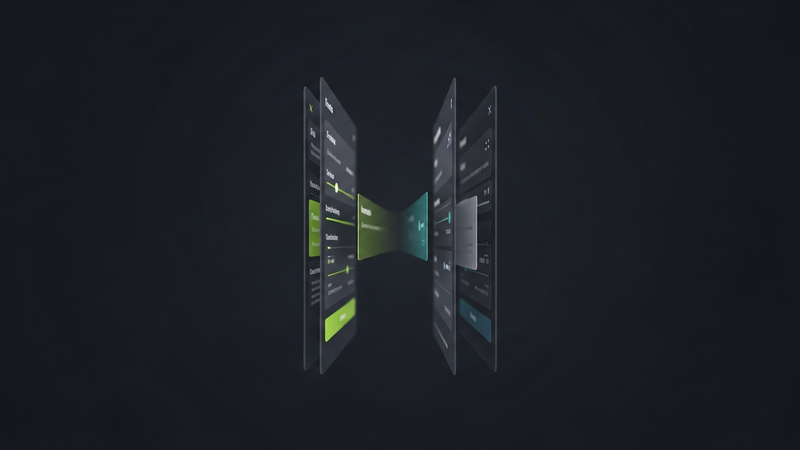
Bilingual Writing Workspace — Translate and Edit in One Screen
Write in your native language, publish in English, and never leave the document to do it. A bilingual writing workspace holds your source text and the English version in the same editor. Translate a passage, tidy the grammar, rewrite a clumsy line, confirm it reads as original — all without opening a second tab.
Count the tabs in a normal bilingual session: DeepL for the translation, Grammarly for the grammar, QuillBot for the rewrite, Word to glue it together. Four apps, a dozen copy-pastes, and every paste throws away what the last tool knew. Diglot folds that into one workspace. You draft, translate, rewrite, and run an originality check without leaving the page — and a translation memory quietly keeps the phrasings you approved so they carry into the next document.
- Your source language and English sit side by side — the original never scrolls off while you edit
- Translate, paraphrase, fix grammar, and check originality without switching apps
- A translation memory reuses the terms you approved, so wording stays steady across documents

Stop copy-pasting between DeepL, Grammarly, and Word
Count the tabs in a normal bilingual session: DeepL for the translation, Grammarly for the grammar, QuillBot for the rewrite, Word to glue it together. Four apps, a dozen copy-pastes, and every paste throws away what the last tool knew. Diglot folds that into one workspace. You draft, translate, rewrite, and run an originality check without leaving the page — and a translation memory quietly keeps the phrasings you approved so they carry into the next document.
Jot the idea down in your native language, translate a line inline, and keep shaping the English right beside the source. A standalone translator overwrites your text and hands it back stripped of context — this keeps both versions in front of you.
Contextual translation, L1-aware grammar, and rewriting share one editor, so a correction can see the sentence you just translated. Run those in separate tabs and each paste arrives as a fresh, context-free block.
Approve a term once — a brand name, a piece of field jargon, the way you render a tricky phrase — and it sticks across every document. Generic translators forget the moment you close the tab; this gets more consistent the longer you use it.
How this workflow works
Move from bilingual rough ideas to polished English in one calm flow instead of stitching together separate tools.
Open one bilingual document
Start with your native-language source and your English draft in the same editor, side by side, instead of splitting them across a translator tab and a word processor.
Translate passages in place
Highlight a word, phrase, or sentence to translate it inline — literal, idiomatic, or formal — while the source stays anchored on screen for context.
Polish the English right there
Move straight into L1-aware grammar and paraphrasing on the translated text, with every suggestion aware of the surrounding draft and your translation choices.
Keep terms consistent over time
Translation memory reuses your approved phrasings across documents, so recurring terminology stays consistent without re-editing every session.
What you can do with Diglot
Use this workflow to move from bilingual drafts to cleaner English output without breaking your editing flow across separate tools.
One calm path from rough idea to final English
Diglot keeps drafting, translation, grammar review, and rewriting inside the same workspace so you do not have to move text across disconnected tools.
- L1 source stays anchored on screen
- Inline translate on any selection
- Literal, idiomatic, and formal options
The workspace is built around keeping two languages in view at once, so you edit the translation against the original instead of trusting a black-box rendering.
- L1 source stays anchored on screen
- Inline translate on any selection
Translation, grammar, paraphrasing, and originality checks share one document context, so corrections see what you have already written and translated.
- No copy-paste between DeepL and Word
- Grammar and paraphrase in the same pass
What this module includes
The module is not just one button. It is a focused part of the Diglot workspace with real writing actions, review controls, and context-aware output.
Source and English, side by side
The workspace is built around keeping two languages in view at once, so you edit the translation against the original instead of trusting a black-box rendering.
- L1 source stays anchored on screen
- Inline translate on any selection
- Literal, idiomatic, and formal options
One editor, not four tabs
Translation, grammar, paraphrasing, and originality checks share one document context, so corrections see what you have already written and translated.
- No copy-paste between DeepL and Word
- Grammar and paraphrase in the same pass
- A DeepL + Grammarly combo in one app
Memory that compounds
Approved terminology persists across documents, so the workspace gets more consistent the longer you use it.
- Per-writer translation memory
- Glossary overrides for key terms
- Consistent phrasing across every draft
Who this is built for
Diglot works best when English is your output language but not always your thinking language.
Bilingual creators
Turn ideas that start in your native language into natural English copy without bouncing between translation and rewrite tools.
International students
Move from rough documents to cleaner English submissions with structure, paraphrasing, grammar review, and originality checks in one place.
Multilingual professionals
Write faster for work without sounding translated. Diglot helps you refine tone, clarity, and confidence before you hit send.
Why trust this workflow
This page is written for non-native English speakers and reviewed against the current Diglot workflow, not against a generic AI copy template.
Built around real bilingual writing tasks
The guidance on this page reflects how Diglot handles drafting, translation, grammar review, paraphrasing, and originality checks inside one editor.
Written for people who think in one language and deliver in English
Examples, copy, and workflow steps are shaped for students, professionals, and creators who need clearer English output without losing meaning.
Reviewed by Diglot Editorial Team
Last reviewed on July 18, 2026. We update these landing pages when the workflow, module behavior, or recommended writing path changes.
Frequently asked questions
Everything you need to know before getting started.
What is a bilingual writing workspace?
It’s a single editor that holds two languages at once — your native-language source and the English you’re writing — so translating, rewriting, grammar review, and originality checks all happen in one document instead of scattered across apps. Diglot is built for the writer who thinks in Korean, Chinese, Japanese, Spanish, Russian, or Arabic and has to publish in English.
Can I translate and edit text on one screen?
Yes — that’s the whole point. Highlight a passage, translate it in place, keep the source pinned beside it, and edit the English straight away with grammar and rewrite tools that share the same document. No flipping between a translator tab and a word processor.
Is this a DeepL and Grammarly alternative in one app?
It does both jobs in one place: contextual translation with literal, idiomatic, and formal options, plus L1-aware grammar and paraphrasing. The reason to prefer it over running DeepL and Grammarly separately is shared context — each edit sees the surrounding draft and the translation choices you already made, so the English reads of a piece instead of stitched together.
Does the workspace have a translation memory?
Yes. Diglot stores the phrasings and terminology you approve and reuses them everywhere, so medical terms, product names, and field jargon stay put over months of writing rather than getting re-guessed each session.
Do I have to install anything?
No — it runs in any modern browser, desktop or mobile. The free plan covers translation, grammar, and paraphrasing in the bilingual editor; paid plans lift the usage limits and add the premium model tiers.
See what each Diglot workflow includes
Explore the writing tasks covered by every Diglot workflow before you jump into related guides and deeper comparisons.
Draft, refine, and rewrite English with AI support built for non-native speakers.
Translate, compare, and edit multilingual text in one writing workflow.
Catch grammar, spelling, and punctuation issues while you write in English.
Rewrite sentences, improve fluency, and keep your original meaning clear.
Scan content for overlap and protect originality before submission or publishing.
Start from ready-made structures for essays, emails, reports, and proposals.
Cryptographically signed proof you wrote your own text — defends against false AI-flag accusations.
Write in your language,
publish in English
Move from rough bilingual drafts to clearer English in one connected writing workflow.

A bilingual writing workspace fixes a problem the big tools ignore: a writer who thinks in one language and publishes in another doesn’t need a slightly better translator or a slightly better grammar checker on its own — they need both in the same document, with the source text staying put the whole time. The usual setup is DeepL in one tab, Grammarly in a second, QuillBot in a third, and Word to assemble the pieces. Each copy-paste drops the context, so the grammar checker never learns the sentence was translated and the paraphraser never sees the paragraph around it. Diglot puts the whole thing on one screen. You draft in your first language, translate passages inline with literal, idiomatic, and formal options, and edit the English beside the source instead of chasing it between windows. Grammar review is L1-aware, so it catches the dropped articles, flattened tenses, and false cognates your first language tends to produce and tells you what to change. A per-writer translation memory keeps approved terminology steady from one document to the next. What you get is the workflow bilingual writers keep improvising by hand — write in Spanish, publish in English, edit in one place — minus the tab-hopping that roughly doubles the time editing should take.